
Consequences and precautions to consider before deciding to downgrade firmware
IMPORTANT
: To enhance device security, firmware downgrade is no longer allowed beginning with firmware versions xxxxx.230.001 and LW90.xx.P001
. If you have questions about this, please contact Lexmark Technical Support for further assistance.Side effects of downgrading firmware
Downgrading or reverting firmware levels is not advised. Many reasons exist, for example:
Downgrading firmware from FW4... | To a lower level, such as FW3... | Results in... |
|---|---|---|
CXTPP.040.072a | PP.0 3 x.yyy |
|
Considerations
- Do not downgrade firmware just because another device with lower firmware is working correctly. Escalate all issues with Lexmark’s Technical Support team before deciding to downgrade firmware.
- You may have a PE-released version of firmware and this version may be more current than what is available onsupport.lexmark.comorLexmark Cloud Services. Always check firmware levels found under Device information.
- It may not be possible to downgrade code. Refer to “Unable to downgrade code” for more information about this topic
- If using theESF config toolto deploy/configure apps,do notselect the “install the firmware first" option unless you are absolutely certain theexisting firmwareon the device isoutdated.
Device recovery
Do not downgrade firmware, since returning the device's full compliment of features and functionality requires a
multi-step process
and likely requires contacting the solutions support team.Downgrading firmware
If necessary, and only as a last resort, if you are required to downgrade firmware, then you must follow this prelist and summary of steps to recover existing solution (apps) and configuration settings.
Before you begin
- Create a list of all apps that are not pre-installed at the factory.
- Capture all configuration settings for apps, e-mail, fax, copy, print, network, and security functions.
- Capture all user-defined shortcuts, profiles, and destinations.
- Downgrade firmware to the previous EC revision of firmware.
- Clear cache in the browser used to access the printer Embedded Web Server (EWS) page.
- After the printer returns to a ‘Ready’state, access the printer EWS; for example, http://printer's_IP_address.
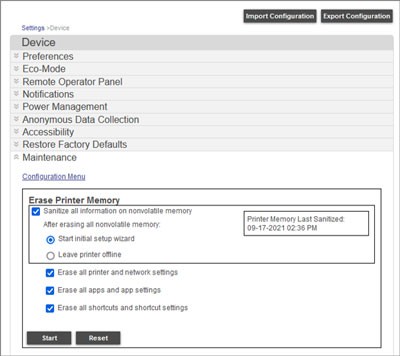
- Navigate toDevice>Maintenance.
- Select the following underErase Printer Memoryoptions:
- Sanitize all information on non-volatile memory.
- Start initial setup wizard.
- Erase all printer and network settings.
- Erase all apps and app settings.
- Erase all shortcuts and shortcut settings.
- ClickStart.
Reinstalling and activating apps
Upon completion, follow the steps in the setup wizard. Reacquire and reinstall all lost apps, licenses, certificates, and re-configure all user-defined settings.
You need apps specific to your code level since apps are code-level dependent.
Firmware nomenclature
Firmware level | Settings page (Base) | Description |
|---|---|---|
Firmware 4‑8 | CXTPP.073.042a | Offers better delineation of models:
|
Firmware 3 (FW3) | PP. 03x.yyy |
|
Device information
Reports
> Device
> Device Information
for CXTZJ.076.301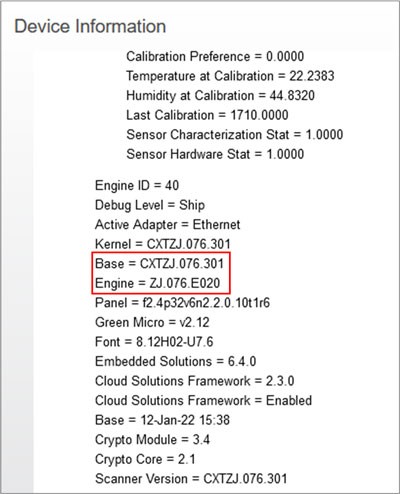
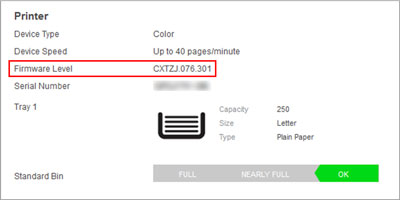
Base code level can also be found at
EWS
> Status
.
LEGACY ID:
SO8017