
Thin (Single Pel) Lines Are Extremely Light or Not Visible
Thin (Single Pel) Lines Are Extremely Light or Not Visible
Affected Products:
Single-Function: All Color and Mono SFP Devices
Multifunction: All Color and Mono MFP Devices
Issue Description:
A printed graphic (chart, spreadsheet, or image) is missing fine lines or its lines are barely visible.
Solution:
Depending on printer type, driver version and age of the printer, you can enable or adjust
pixel boost
,
halftone
or
enhance fine lines
.
See
Settings explained
to help determine which driver setting to use.
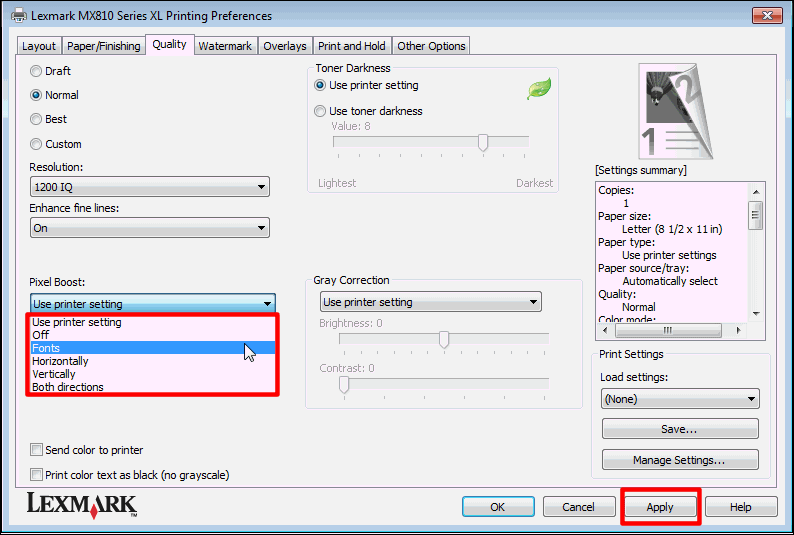
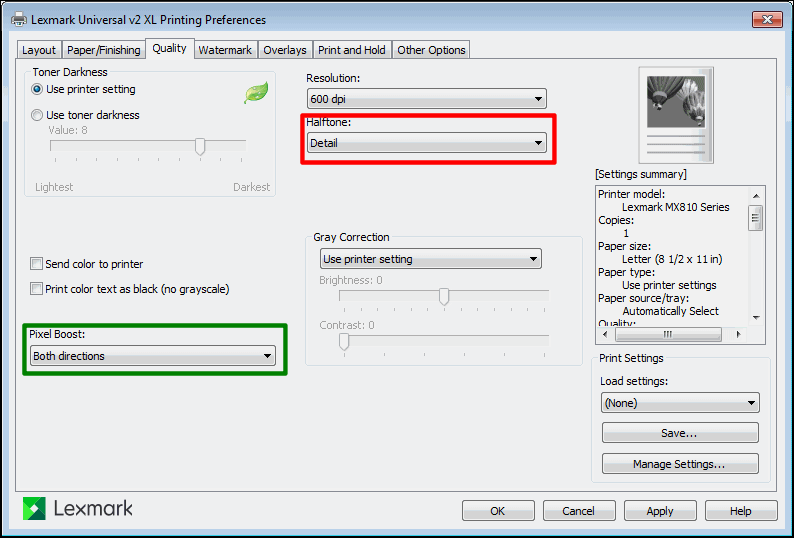
Adjusting 'Pixel boost' Setting for Monochrome Printers:
This setting will only be available with monochrome printer drivers or a universal printer driver (
UPD
) configured for a monochrome printer.
- Open thePrinters and Faxes(Devices or Printers) window.
- Right-clickon the printer object.
- Click onPrinting Preferences
- Click on theQualitytab.
- UnderneathPixel boost, select the necessary setting, i.e.,Off,Both directions,Vertically,Horizontally,Fonts.
- Click onApply.
- Click onOK.
Older PCL XL
custom driver
| UPD PCL XL (Configured for monochrome printer) |
 | 
Note:
Selection also available in UPD v2PCL5 driver.
|
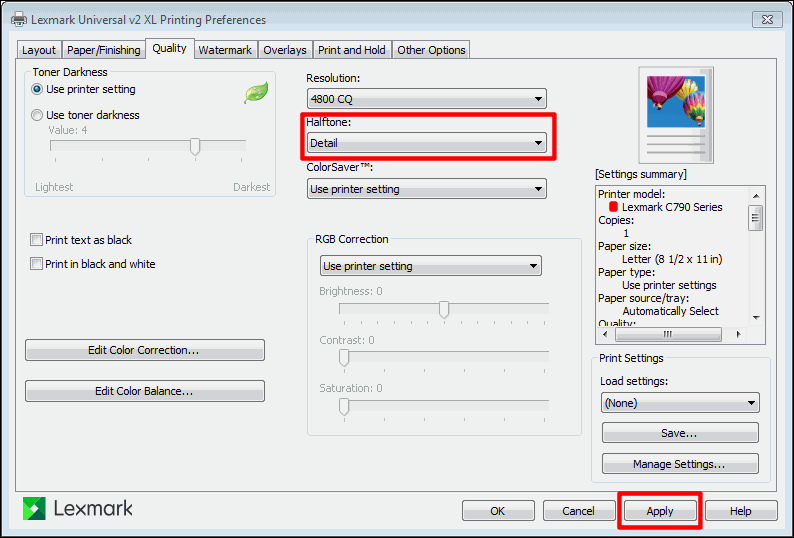
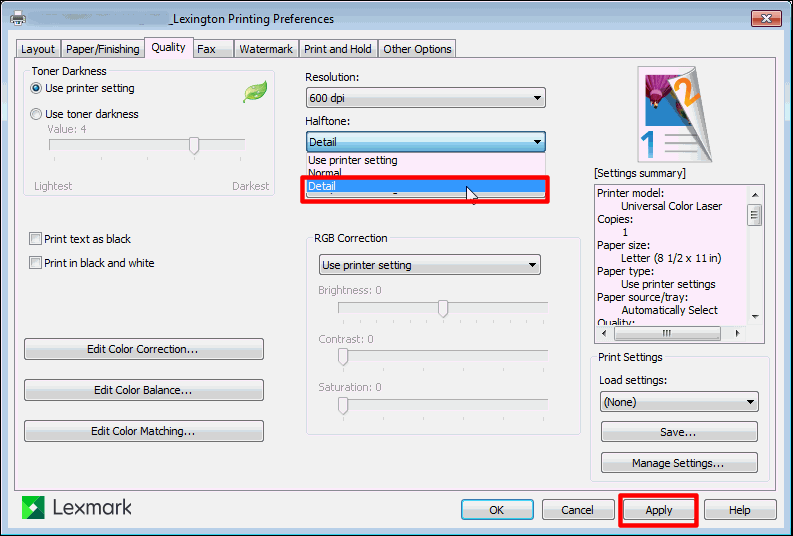
Enabling 'Halftone' for Color Printers:
- Open thePrinters and Faxes(Devices or Printers) window.
- Right-click on the printer object.
- Click onPrinting Preferences.
- Click on the driver'sQualitytab.
- Now in theHalftone setting, selectDetail.
- Click onApply.
- Click onOK.
UPD PCL XL (Configured for color printer) | UPD PostScript
|
Note:
Option also available for UPD v2PCL5 driver.
|  |
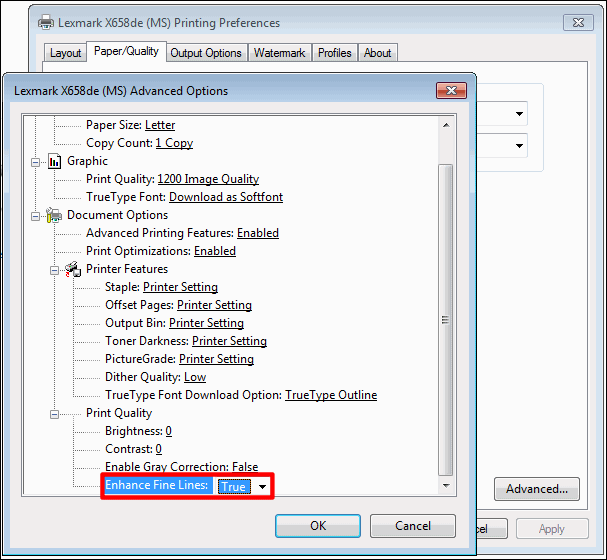
Enabling 'Enhance fine lines' for older driver versions and Microsoft Inbox drivers:
Older print driver versions
- Right-clickon the printer object.
- Click onPrinting Preferences.
- Click on the driver'sPrint Qualitytab.
- Click onMore Print Quality Options.
- Place a checkmark next toEnhance fine lines.
- Click onApply.
- Click onOK.
Inbox driver
- Open thePrinters and Faxes(Devices or Printers) window.
- Right-clickon the printer object.
- Click onPrinting Preferences.
- Click on the driver'sPaper/Qualitytab.
- Click onAdvanced.
- Next toEnhance fines lines, selectTrue.
- Click onApply.
- Click onOK.
Settings Explained:
Setting
| Details
|
Pixel Boost
(Available only for monochrome printers)
|
|
Halftone
|
|
Enhance fine lines
(MS) system driver and older driver versions only
|
|
Still Need Help?
Have the following available when calling Lexmark Technical Support;
- Printer model(s)
- Printer serial number
- Software / Solution
LEGACY ID:
SO2217