
Fine lines are not printed correctly
Are the fine lines or special characters not printed correctly? Check the toner cartridge and adjust the toner darkness of your printer.
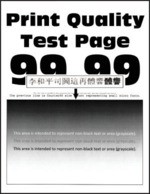
Before solving the problem, print the Print Quality Test Pages. From the control panel, navigate to  to navigate through the settings.
Settings
>
Troubleshooting
>
Print Quality Test Pages
. For non‑touch‑screen printer models, press to navigate through the settings.- Perform the following tests:
- Check if the printer is using a genuine and supported Lexmark toner cartridge.If the cartridge is not supported, then install a supported one.Print the document.Are fine lines not printed correctly?
- Yes:Go to the next step.
- No:The problem is solved.
- Perform the following tests:
- Increase toner darkness.From the control panel, navigate to:Settings>Print>Quality>Toner DarknessPrint the document.Are fine lines not printed correctly?
- Yes:Contact customer support.
- No:The problem is solved.