
Creating a discovery profile
Use a discovery profile to find printers in your network and add them to the system. In a discovery profile, do either of the following to include or exclude a list of IP addresses or host names:
- Adding entries one at a time
- Importing entries using a TXT or CSV file
You can also assign and enforce a configuration automatically to a compatible printer model. A configuration must contain printer settings, applications, licenses, firmware, and CA certificates that can be deployed to the printers.
- From thePrintersmenu, click .
- From theGeneralsection, type a unique name and description for the discovery profile, and then configure the following:
- Timeout——How long the system waits for a printer to respond.
- Retries——The number of times the system attempts to communicate with a printer.
- Automatically manage discovered printers——Newly discovered printers are set to aManaged state automatically, and theNew state is skipped during discovery.
- From theAddressessection, do either of the following:Add the addresses
- SelectIncludeorExclude.
- Type the IP address, host name, subnet, or IP address range.
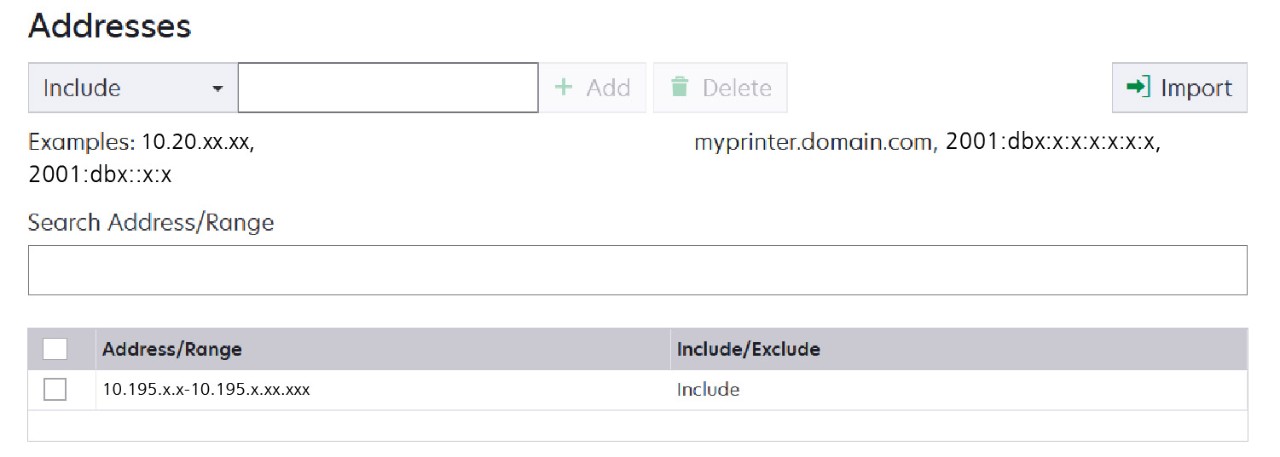 Add only one entry at a time. Use the following formats for the addresses:
- 10.195.10.1(single IPv4 address)
- myprinter.example.com(single host name)
- 10.195.10.3-10.195.10.255(IPv4 address range)
- 10.195.*.*(wildcards)
- 10.195.10.1/22(IPv4 Classless Inter‑Domain Routing or CIDR notation)
- 2001:db8:0:0:0:0:2:1(full IPv6 address)
- 2001:db8::2:1(collapsed IPv6 address)
If separate discovery profiles are created for the IPv6 and the IPv4 address for the same printer, then the last discovered address is shown. For example, if a printer is discovered using IPv6, and is discovered again using IPv4, then only the IPv4 address is shown in the printer list. - ClickAdd.
Import the addresses- ClickImport.
- Select whether to include or exclude IP addresses during the discovery.
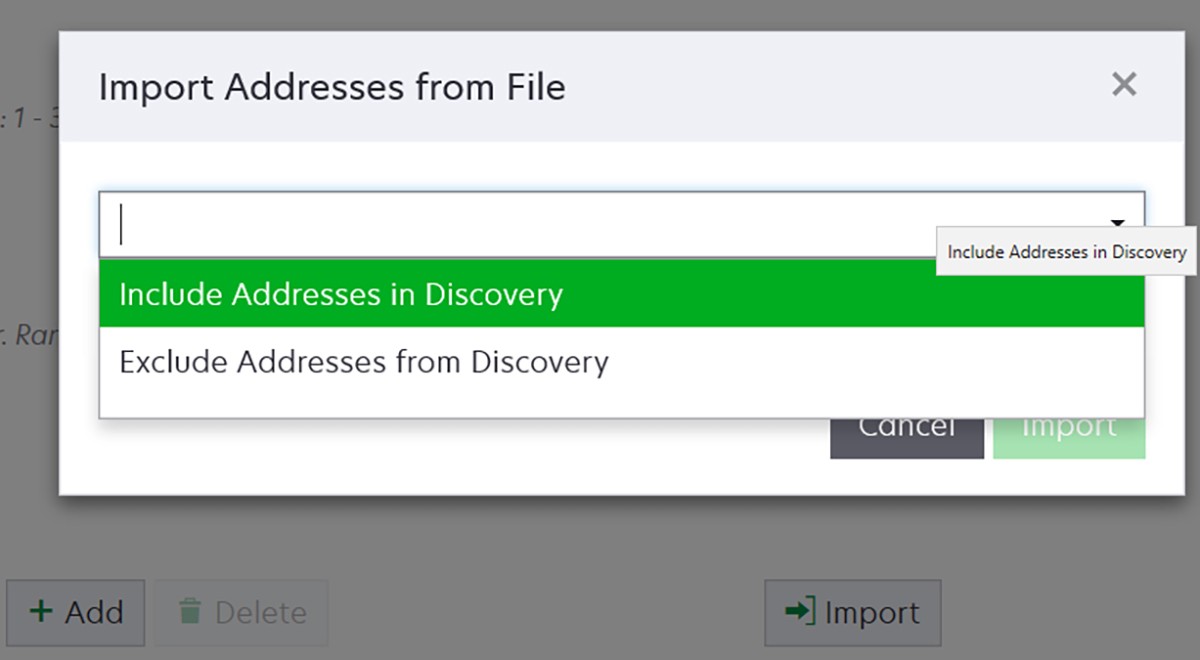
- Browse to the text file that contains a list of addresses. Each address entry must be placed on a separate line.Sample text file10.195.10.1myprinter.example.com10.195.10.110.195.10.3-10.195.10.25510.195.*.*10.195.10.1/222001:db8:0:0:0:0:2:12001:db8::2:1
- ClickImport.
- From theSNMPsection, selectVersion 1,Version 2corVersion 3, and then set the access permissions.To discover printers using SNMP version 3, create a user name and password in the printer Embedded Web Server, and then restart the printer. If a connection cannot be established, then rediscover the printers. For more information, see theEmbedded Web Server Administrator’s Guide.
- If necessary, from theEnter Credentialssection, select the authentication method that the printers are using, and then enter the credentials.This feature lets you establish communication with secured printers during discovery. The correct credentials must be provided to perform tasks on the secured printers, such as audit, status update, and firmware update.
- If necessary, from theAssign Configurationssection, associate a configuration with a printer model. For information on creating a configuration, see Creating a configuration.
- If necessary, from theAssign Keywordssection, associate a keyword with a printer model during discovery. For information on assigning keywords to printers, see Assigning keywords to printers.
- All the printers discovered through this profile are assigned with the new keywords.
- The new keywords are added to the existing list of keywords which are already assigned to a printer.
- ClickSave ProfileorSave and Run Profile.
A discovery can be scheduled to occur regularly. For more information, see Creating a schedule.